About these ads
Leave a comment

Battery Drain on Surface RT Running Windows RT 8.1 Preview? There’s a Workaround

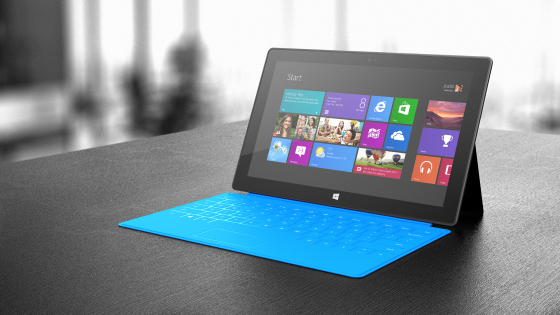
Surface RT

If you own a Surface RT and you are a tech geek, most likely you got it installed with the latest Windows RT 8.1 Preview. While it’s fun to play with all the latest features, there is a pretty annoying issue with this preview on the Surface RT, particularly on the battery life. With the Windows RT 8.1 Preview, the battery drain extremely fast even though it is kept in Sleep Mode, and I have tried different ways trying to stop the draining (turning off Bluetooth, Uninstall apps etc.), it doesn’t seems to work at all.

Luckily, there is a weird workaround to stop this battery drain issue - turn on the Bluetooth, rather than turn it off. Sure, it sounds really strange, but apparently it’s a bug in Windows RT 8.1 Preview and below is quoted from someone worked in Microsoft:

Powercfg /sleepstudy reports any issues that are preventing the CPU from entering its lowest power state during Connected Standy (e.g. screen is off). In this case, the state of the specific UART controller is preventing the CPU entering its lowest power state. This UART happens to be connected to the Bluetooth radio on Surface. Unfortunately, the bug that causes this bad state occurs exactly when the Bluetooth radio is turned off in PC Settings.

It is reasonable to want to turn off the Bluetooth radio to conserve even more power, but be aware that the major contributor to drain on battery is overall system power use, not just an individual radio.

Microsoft teams are aware of this issue in the preview build of Windows 8.1.

It works for me pretty well since I turn on the Bluetooth radio, so if you have a similar issue, give it a try and let me know if it works for you.


About these ads
Leave a comment

Helvetica & Helvetica Neue fix for Windows for Chrome

Reblogged from b1oh@zarDev:

There are many people having issues with Helvetica Neue in Windows because they don't render right in browser, so I’ve come up with a solution without having to uninstall the font.

Browse to:

C:UsersYOURUSERNAMEAppDataLocalGoogleChromeUser DataDefaultUser StyleSheetsCustom.css

And add to the end of the file:

@font-face { font-family: 'helvetica neue'; src: local('Arial'); } @font-face { font-family: 'helvetica'; src: local('Arial'); }

And the problem is solved! :D

If you have just recently found out that Chrome in Windows seems to render some texts in a very weird way, check if you install Helvetica Neue fonts family recently. If you did, you can either uninstall the font, or use the fix that mentioned in this blog post.
Leave a comment

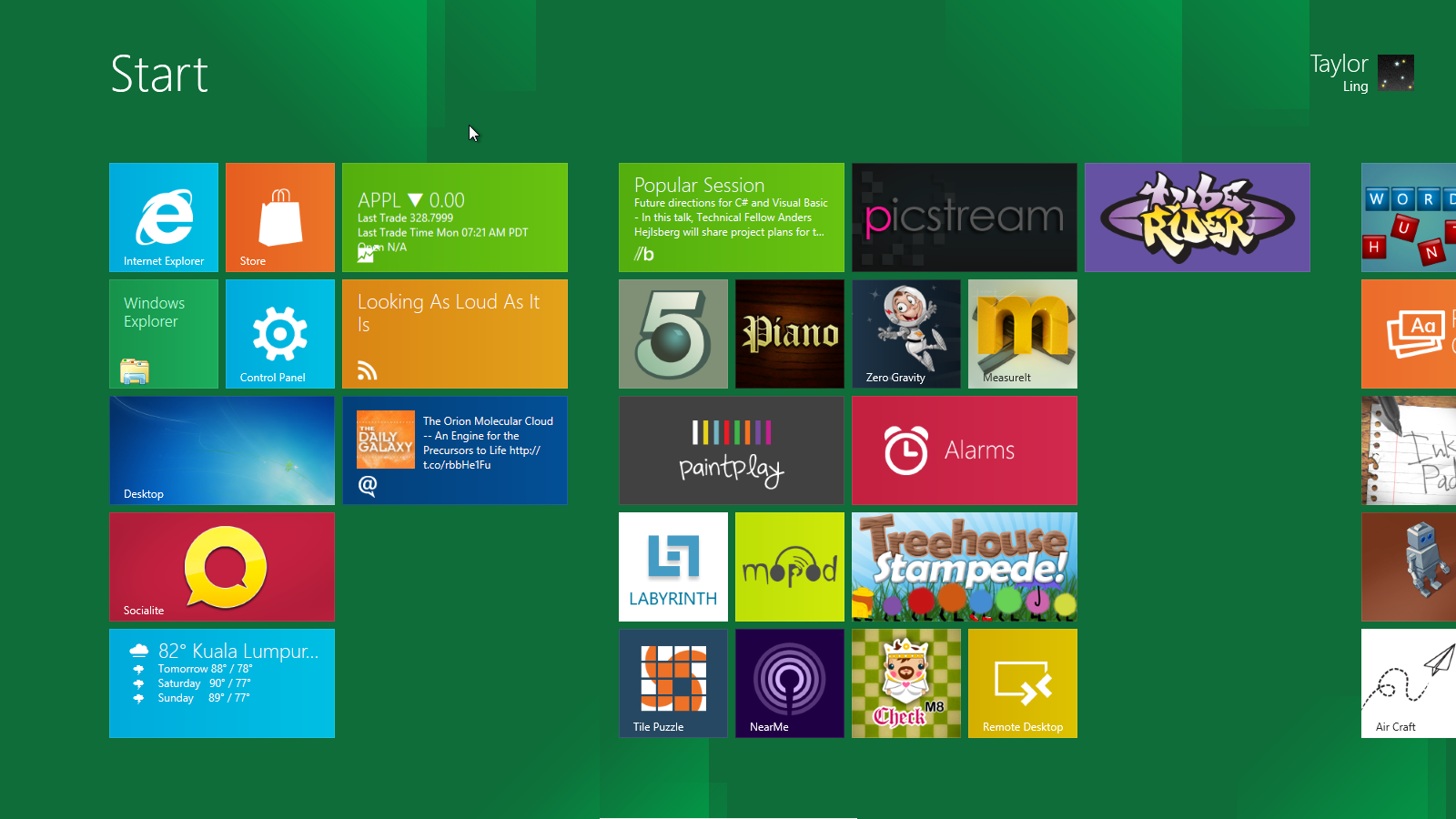
Welcome to the future - Touch-free interaction is the next big thing

When Steve Jobs unveil the magical multi-touch interaction on the first iPhone, everyone is getting wowed by it. Thanks to Steve’s decision on making an iPhone first instead of an iPad (multi-touch screen is initially designed at the size of iPad), as well as the top notch touch-oriented operating system - the iOS, finger-friendly touch interaction is able to reach thousands and thousands of people around the world, and it is even more magical on the iPad. A new page in human-computer interface is then opened, and we are slowly moving away from stylus-based and button-based interaction. Continue Reading »
1 Comment

[How To] Save Fillable PDF Form

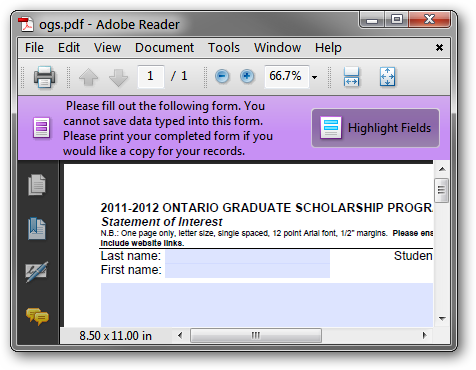
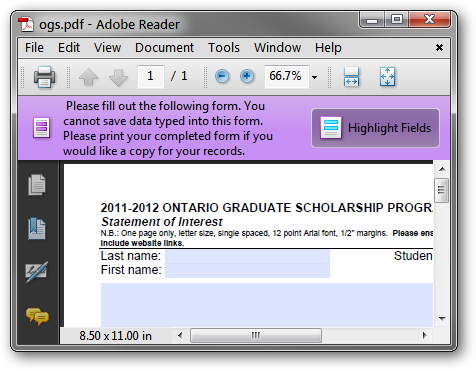
While it seems to be a pretty simple question, but if you are using Adobe Reader AND you are filling a fillable PDF form (with the above warning), most probably that you are scratching your head and ask yourself ‘How do I save this darn thing?‘. Of course, if the fillable PDF is created in an appropriate way, Adobe Reader user will be able to save a copy of the filled form.

What if that is not the case? You have the option to go back to the author and ask for a proper version, but sometimes it just doesn’t work that way. Solution? You will still be able to save the form, only in other PDF readers. Here’s some PDF reader alternatives that can be used to save any fillable form:

  • Nitro Reader - A pretty new PDF reader and it is impressive since first release. You can save fillable form as normal form or flattened version.
  • PDF-XChange Viewer - A long time third party PDF reader with a lot of features - saving a fillable form is one of them.

What are the alternative if a new PDF reader is not a preferred solution? You can try any PDF printer. Fill the form, print the form using PDF printer, and you will have a PDF filled with your information. My recommendation for PDF printers:

  • PrimoPDF - Highly recommended. Easy to install and easy to use.
  • CutePDF - Simple and easy application.

So that’s it! Happy form filling!

Image source
3 Comments

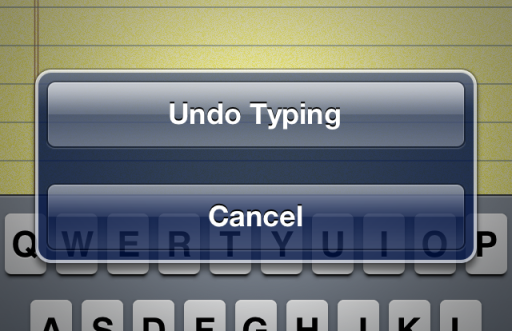
[UX Thought] iOS Shake to Undo is cool, yet it’s a bad design

Do you have an Apple iPhone? If you do, allow me to ask another question: Do you know there is a feature called ‘Shake to Undo’ on the iPhone which allows you to undo/redo your last actions during typing?

If you are aware of this feature, do you still recall how do you know about it? If you doesn’t know about it, you are not alone, and it’s not your fault. Continue Reading »

4 Comments

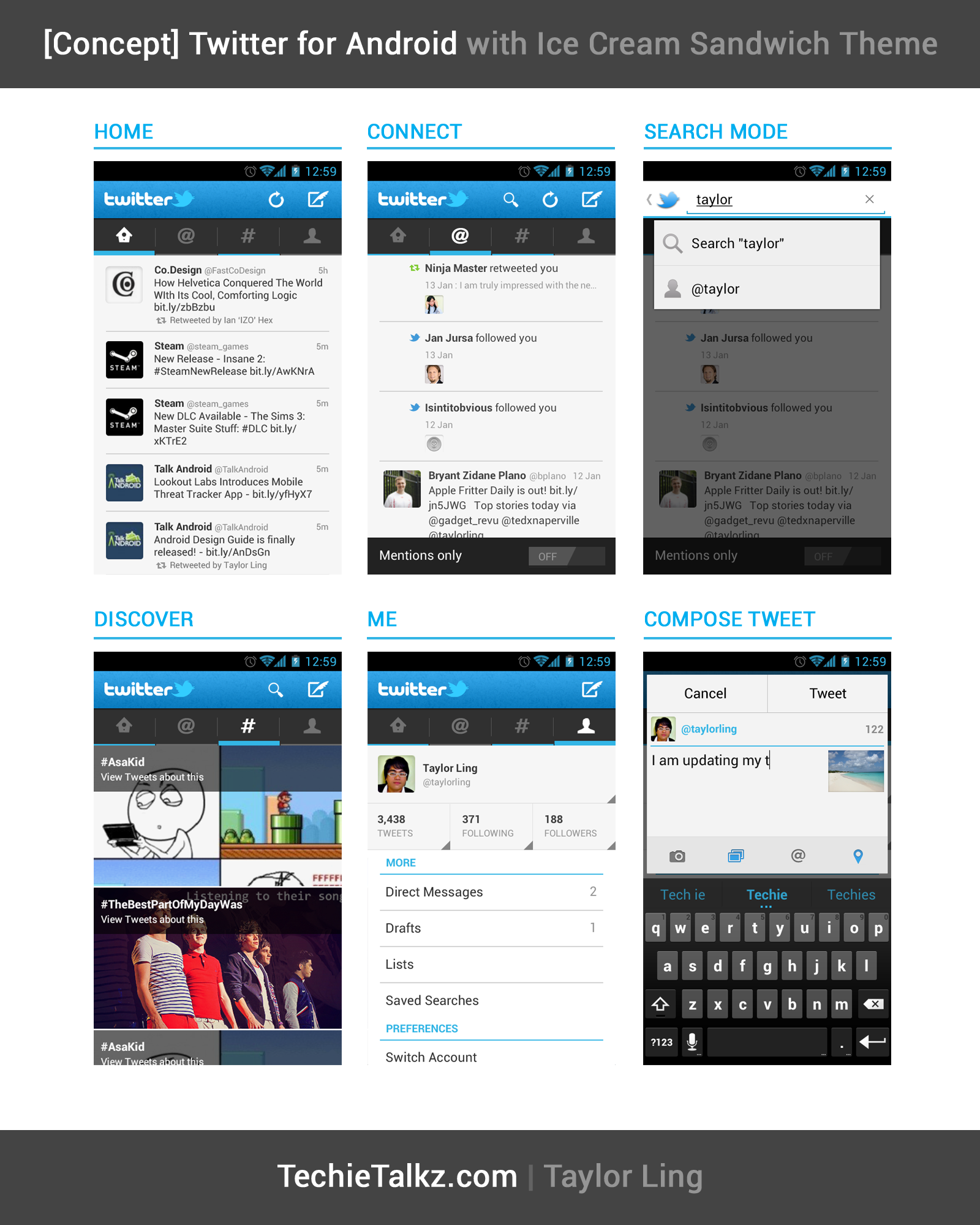
[UI Concept] Twitter for Android with Ice Cream Sandwich Theme

Twitter for Android with ICS Theme

Click the image above for full-size view.

I loved the Holo theme in Ice Cream Sandwich. That’s the reason I made the Android ICS GUI Design Kit in PSD for Android Designer to design high quality app with stock UI elements in mind. But I am also curious how well can the UI elements in Holo theme for ICS can be applied to the currently available apps, so I decided to start with the official Twitter Android app, which is an easy one I think. Continue Reading »

Follow

Get every new post delivered to your Inbox.

Join 955 other followers

%d bloggers like this: